

Practice workspace / Client portal
Give clients one place to respond and approve
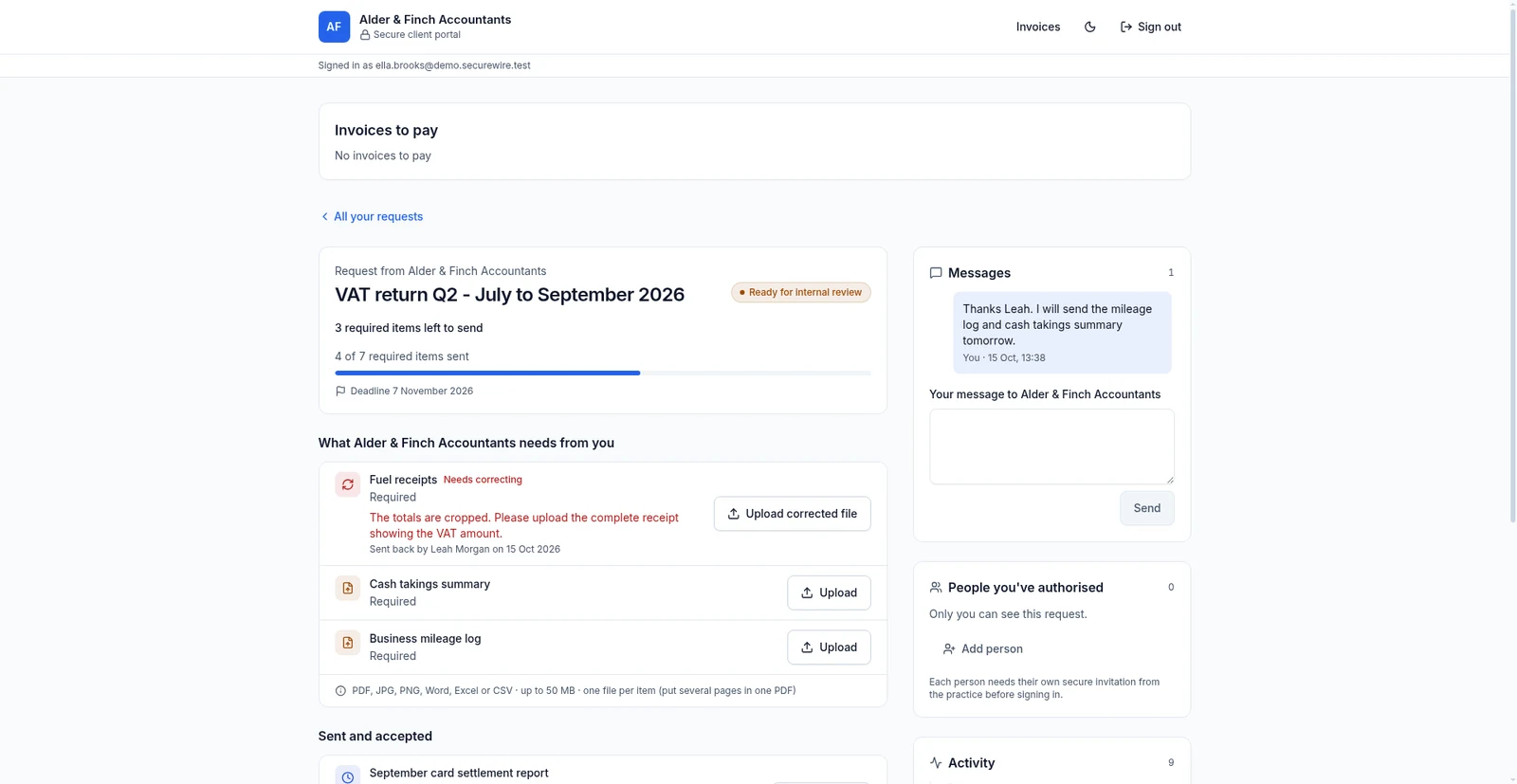
Clients use a phone-friendly portal to answer questions, upload requested documents and approve finished work.
S SecureWire Workflow illustration
Example workflow
ExampleClient portal
Example clientExample steps
Open the invitationIn progress
JLFill in the formNot started
SKUpload documentsNot started
AMCheck review resultsNot started
JLApprove the finished workNot started
JLOpen the invitation01 / 05
Illustrative workflow and sample data. Register interest to discuss your requirements.
How this supports your work
Clients can respond from their phone through a one-time email link, without remembering another password or sending documents as email attachments.
How it works
- Open the invitation
- Fill in the form
- Upload documents
- Check review results
- Approve the finished work
Sign in without a password
Open a secure invitation link or use a one-time sign-in email. The portal carries the practice’s logo and colour.
Fill in the formRespond to each request
Fill in the intake form, upload documents, replace rejected files and reply to messages. Clients can withdraw an upload before review.
Upload documentsSee approvals and invoices
Clients approve, sign off or ask for changes. The portal also shows the practice’s invoices with bank transfer details.
Check review resultsRelated features
Continue with the related work
Prepare for the launch
Tell us what your team needs from accounting software
Register interest in SecureWire and ask us about the modules you need.